
 Version française disponible ici : https://zen.ipag.fr/hc/en-gb/articles/360018806459
Beaugrenelle Campus Address |
How to get there by public transport ? |
|---|---|
|
10-12 rue du Théâtre - Paris 15ème 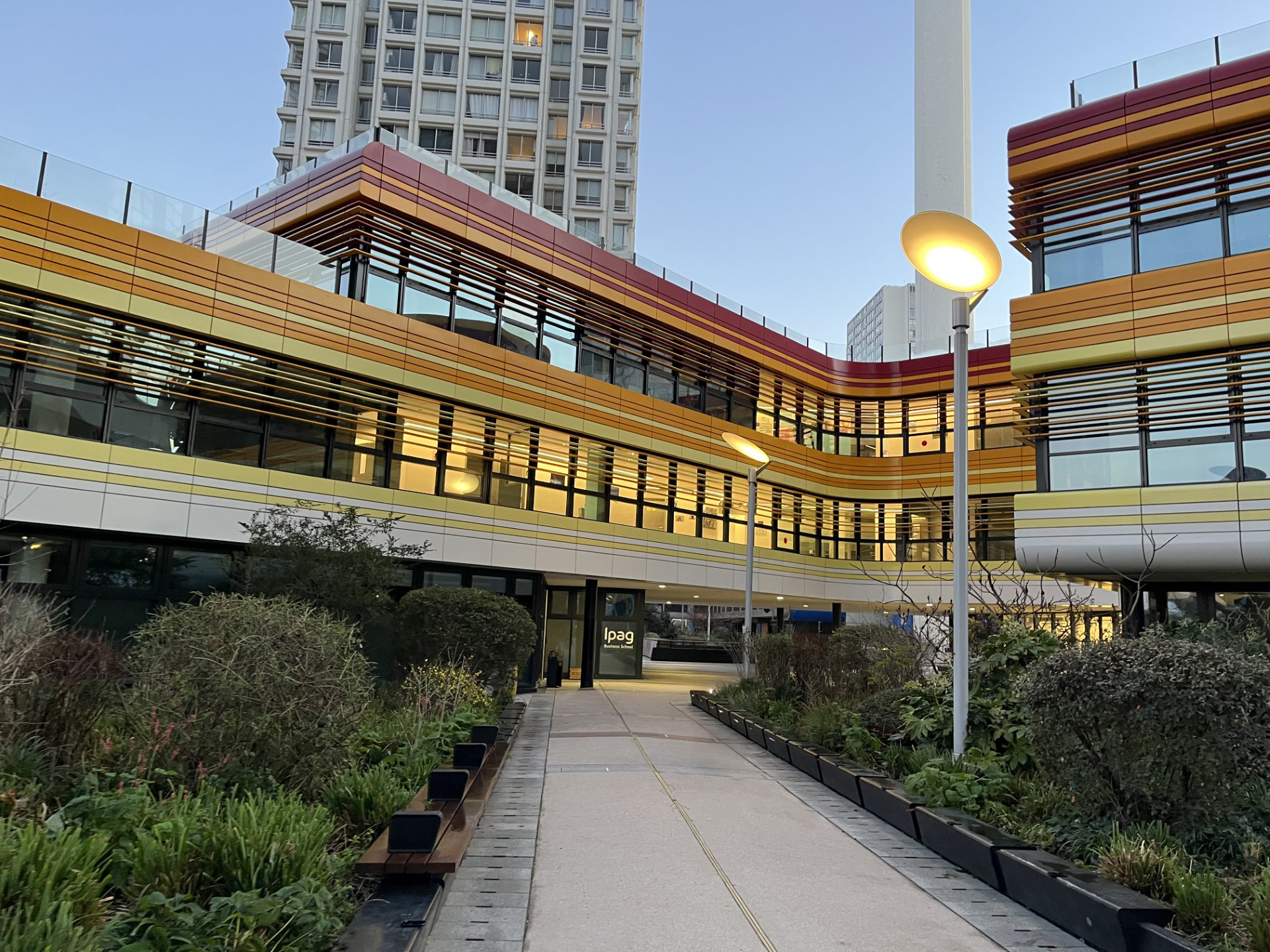 |
|
 : Javel station
How do I access the Beaugrenelle campus buildings ?
Access to the Beaugrenelle campus buildings is controlled by security gates.
To open the security gates, use your smartphone with the STid Mobile ID application.
Content
Initial installation and setup :
-
Install the STid Mobile ID application on your smartphone :
App Store
Google Play
https://play.google.com/store/apps/details?id=com.stid.stidmobileid&hl=fr&gl=FR
-
Open the application on your smartphone
- Accept the different terms and conditions :
-
Allow the application to use Bluetooth (REQUIRED). :
- Allow the application to send notifications (REQUIRED). :
- If an "Inspect" window appears (depending on your phone model), tap Accept :
- Once your virtual card is displayed, tap it to view the back of the card. Make a note of your DEC number :
- From your computer, sign in to your IPAGORA account (web version) : https://ipagora.ipag.fr
- Click "My Account", then "Beaugrenelle access login" :
- Enter your DEC number in the "Virtual Badge ID" field, then click "Validate my entry" :
Please note that activation is not immediate. You must wait 24 hours before you can use your smartphone to open the security gates
Opening a security gate with your smartphone
- Open the STid Mobile ID application (Bluetooth must be enabled)
- Hold your smartphone in front of the security gate reader :
- The security gate will unlock automatically
Troubleshooting
- The STid Mobile ID application must be open on your smartphone for the virtual badge to be detected by the security gate.
- Bluetooth must be enabled, and the application must be allowed to use it.
- On Android devices, you must also allow the application to access your location.
If the security gate does not recognize your badge :
- Close and reopen the application.
- Restart your smartphone
If the problem persists after these checks, please contact the IT Support Desk.
Comments
0 comments
Please sign in to leave a comment.