
🇫🇷 Version Française disponible 🇫🇷
The IPAG Business School provides you with a new wireless network (Wi-Fi) accessible from the Paris and Nice sites. To connect to it, you must have your credentials from the school (email address @ipag.fr + password). These are the same credentials as for Outlook or IPAGORA. The identification is the same whether you are on the Nice or Paris campus.
⚠️ As the Wi-Fi system has been updated in december 2020, you need to forget/remove the network "IPAG" which is currently saved in your device ⚠️
Click here to open the tutorial associated
Method with a computer running Windows 10
Method with an Android smartphone
Method with an Apple smartphone
If you have a computer running Windows 10
- Click on the Network icon (bottom right on your screen) and then find the network "IPAG"
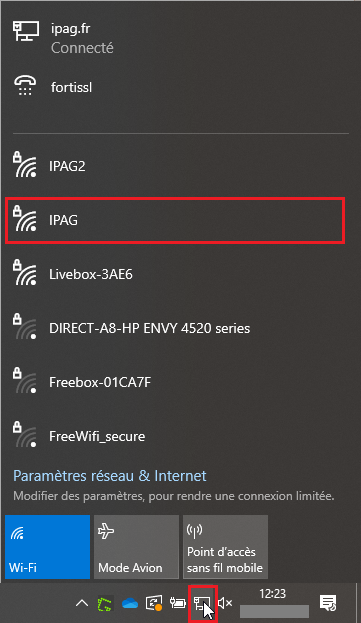
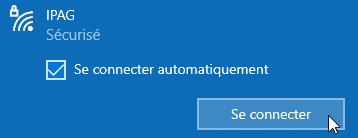
- Click on it, check Automatic Login and then click on Login.
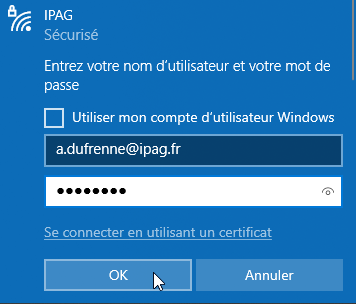
- Enter your email address as well as your password (credentials given by the IT department) and click on OK.
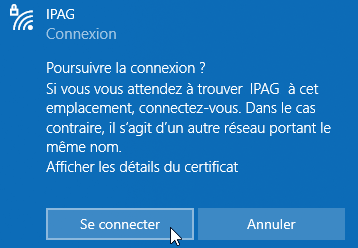
- Proceed with the connection by clicking on "Connect".
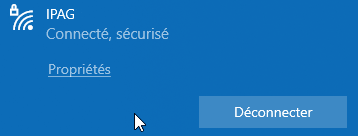
- Once logged in you should get a result like the image below
If you have a computer running Mac OSX
- Go to Wi-Fi on the top right corner of your screen, then find the network "IPAG"
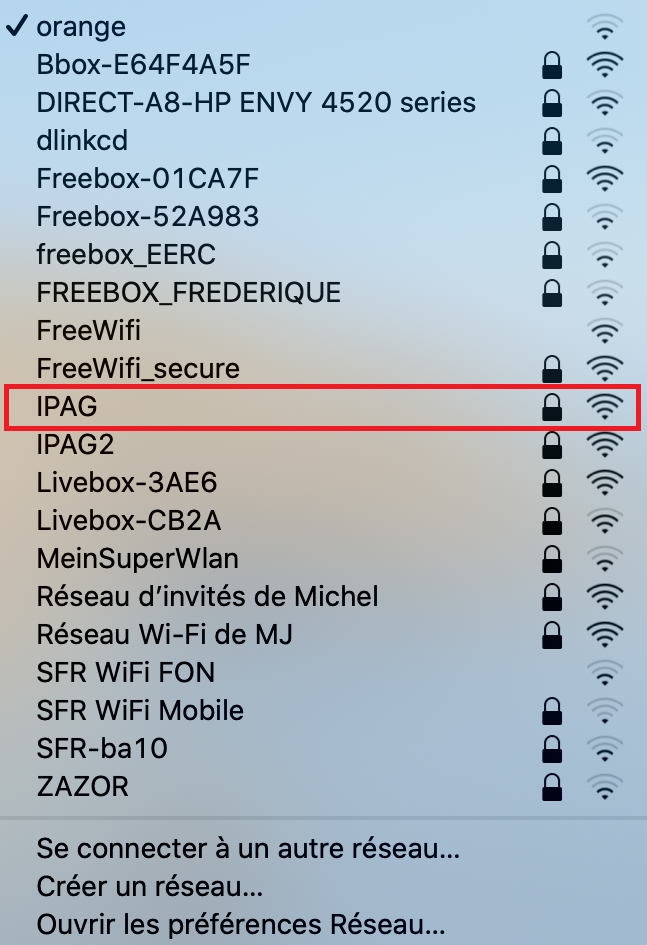
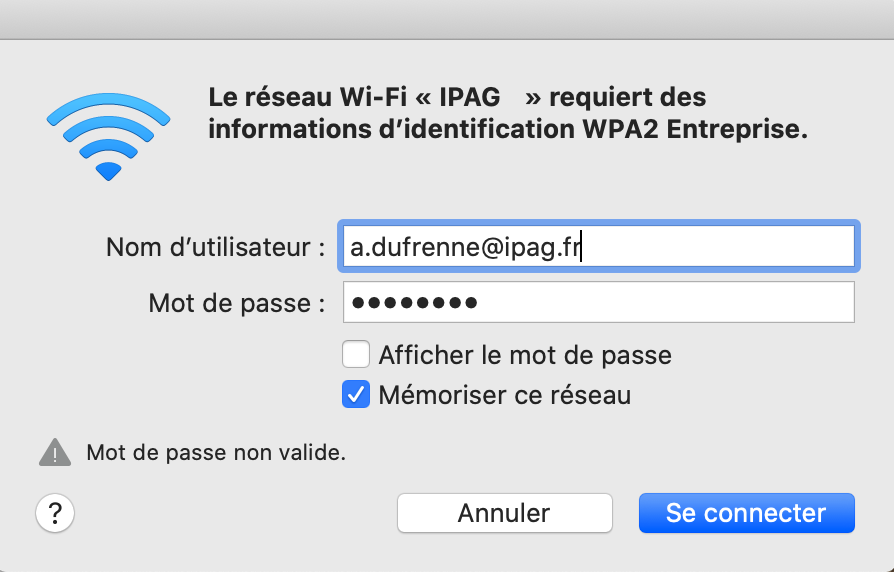
- Enter your email address as well as your password (credentials given by the IT department) and click on OK.
- If you have a request as in the image below you can click on "Continue" to continue logging in.
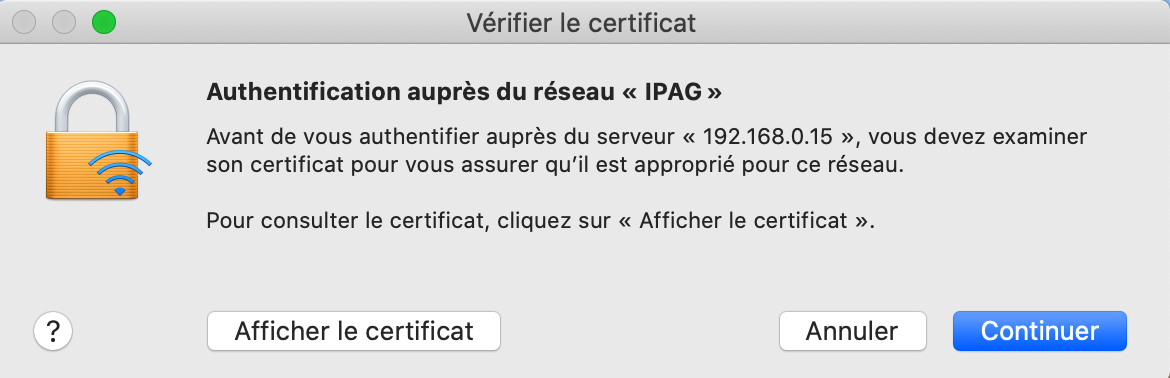
It may be necessary to enter your master password to authorize the certificat
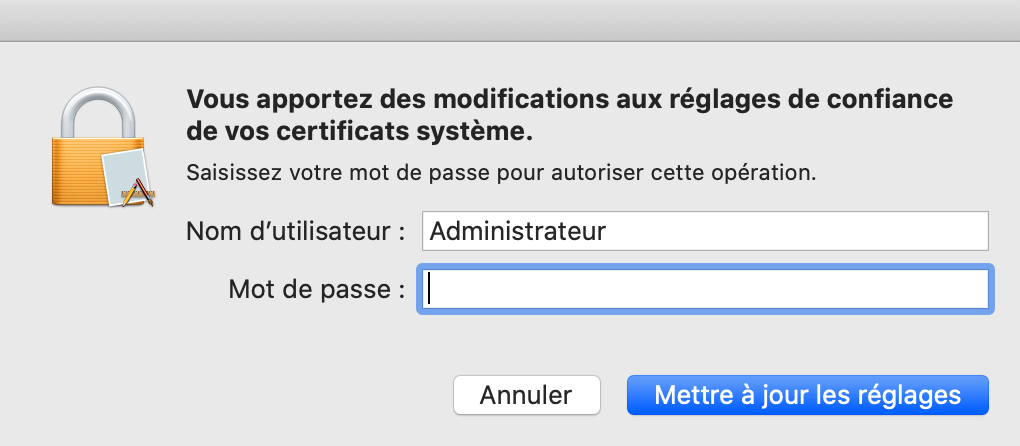
Login again if the connection wasn't successful without the certificate.
If you have an Android smartphone
- Go the the Wi-Fi parameters of your phone in Settings, then find the network "IPAG"
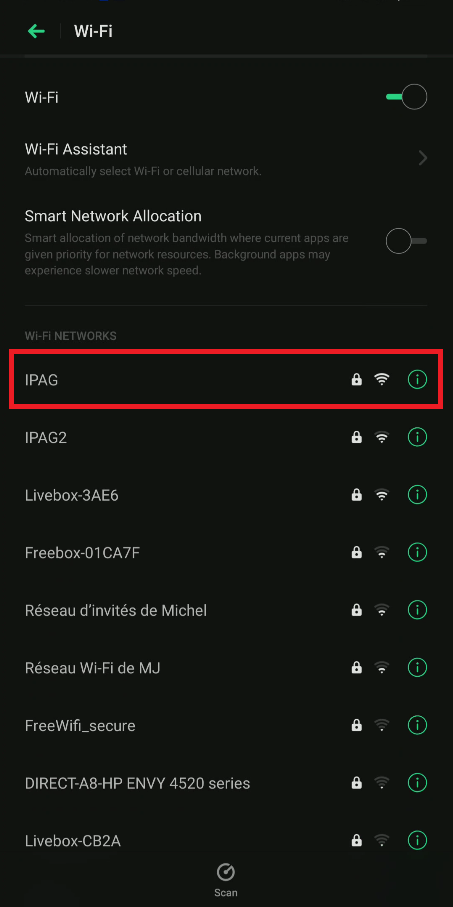
- Enter your email address as well as your password (credentials given by the IT department) and click on JOIN. Other parameters are to be left by default.
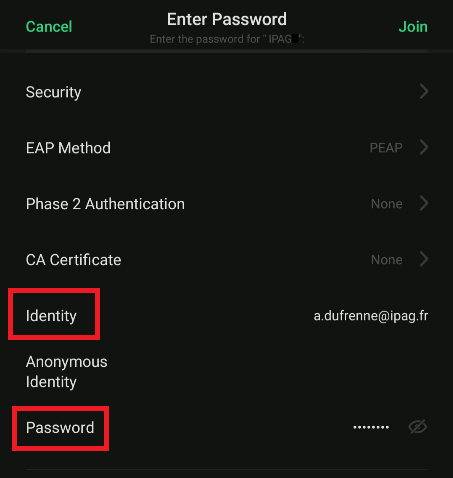
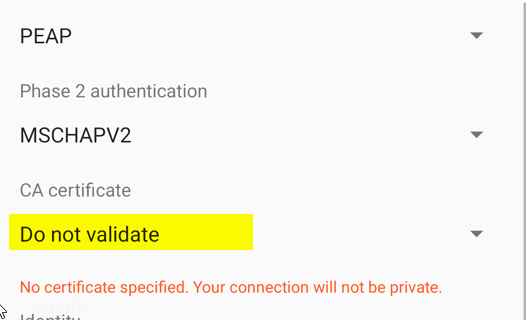
Depending on your version of Android it may be necessary to set Do not validate under Certificat CA part.
If you have an Apple smartphone
- Go the the Wi-Fi parameters of your phone in Settings, then find the network "IPAG"
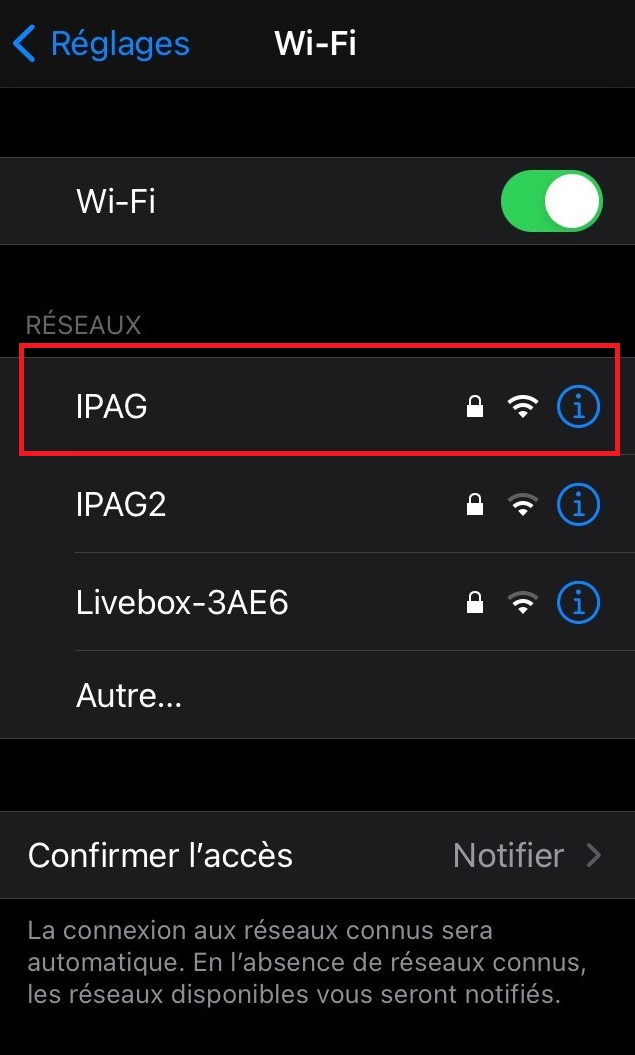
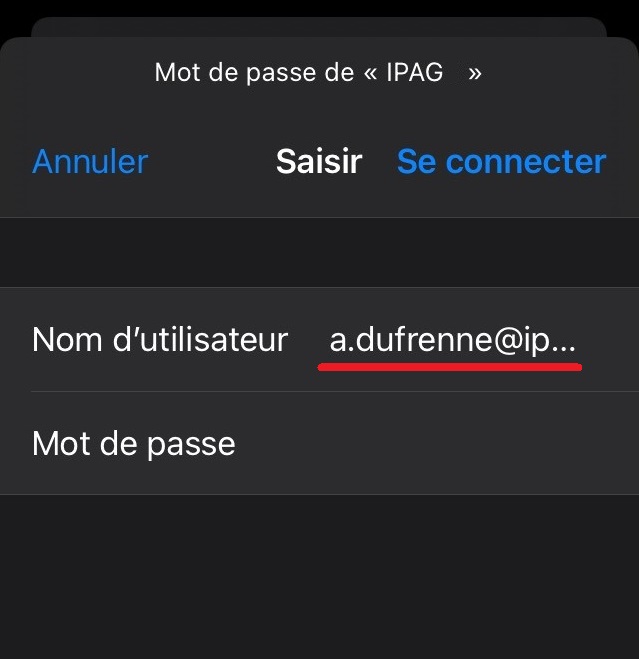
- Enter your email address as well as your password (credentials given by the IT department) and click on Connect
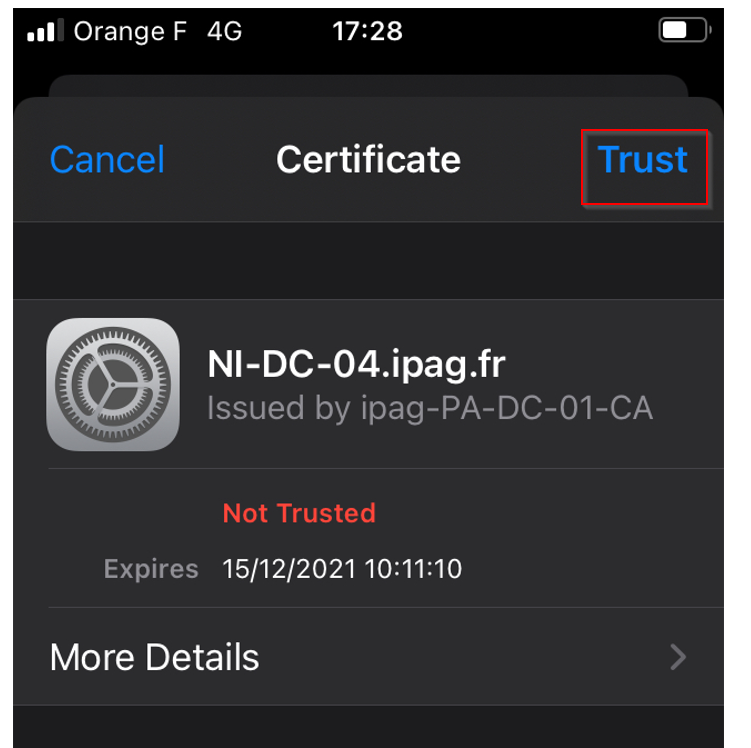
- If you have a request as in the image below you can click on "Se fier" to continue logging in.
Comments
0 comments
Article is closed for comments.